by Magedah Shabo
What Are Macros?
Using macros in Microsoft Word allows writers and editors to reduce a surprising variety of tasks to a quick keystroke. Learning even a few basic macros can dramatically speed up your workflow, making the editing process more efficient and leaving you more time to analyze the substance of a text instead of just fixing mechanics.
Best of all, you can create your first macro in three steps. No coding skills required! 😌
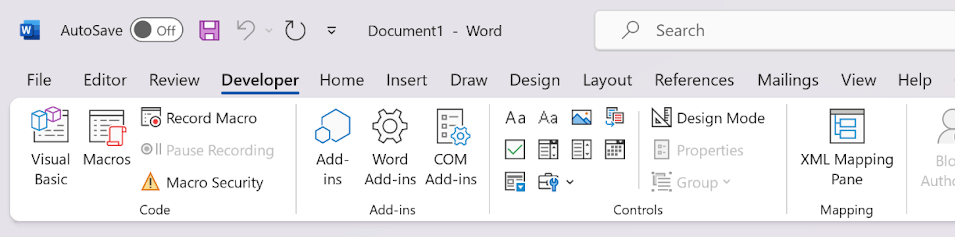
Step 1: Access the Developer tab
To use macros, first select the Developer tab on the ribbon at the top of Word.
Step 2: Record a macro
After selecting the Developer tab:
- Click “Record Macro.”
- Assign a name to the macro.
- Optionally, assign the macro to a button or keyboard shortcut for quick access. (Tip: Make it memorable, like CTRL+C for adding a comment.)
- Choose where to save the macro (in the current document or a template for use in all documents).
- Click “OK” to start recording. Perform the tasks you want the macro to automate.
- Click “Stop Recording” when finished, found either in the Developer tab or in the status bar at the document’s bottom.
You now have a macro!
Step 3: Run your macro
After creating your macro, you can run it to automate the tasks it was designed to do. To execute your macro:
- Navigate to the Developer tab and click “Macros.”
- Select your macro from the list and click “Run.” Alternatively, if you assigned your macro to a button or a keyboard shortcut, you can simply click the button or use the shortcut.
If you’ve made it this far, you are now officially a macro user! 😍
What can macros do?
Popular macros let you perform many tasks with just a gesture.
You can:
- Launch Google and other sites
- Convert numerals to text (or vice versa)
- Apply global changes (e.g., apply correct title case to headings)
- Insert pre-written comments or boilerplate text
- Automate complex formatting
- Generate custom interactive forms
- Perform batch updates to metadata or styles
- Check for consistency (e.g., use of proper nouns or hyphenation)
Next up: Expand your macro tool kit
Stay tuned for my next post where I’ll explore how to easily find and implement popular community-created macros.
 Decode the Docs
Leave a comment